Business consultant in Smithfield, RI, for owners across Rhode Island and Massachusetts.401-212-9402
Joe Russo
Free bookmark organizer

Clean up years of bookmarks in one sitting.

Group them, file them in a few keystrokes, delete the rest, and put one clean set back in your browser. Free, and it runs right in your browser.

Start sorting free

No sign-up · Nothing to install · Works with Chrome, Edge, Firefox and Safari

joerussori.com/tools/bookmark-triage
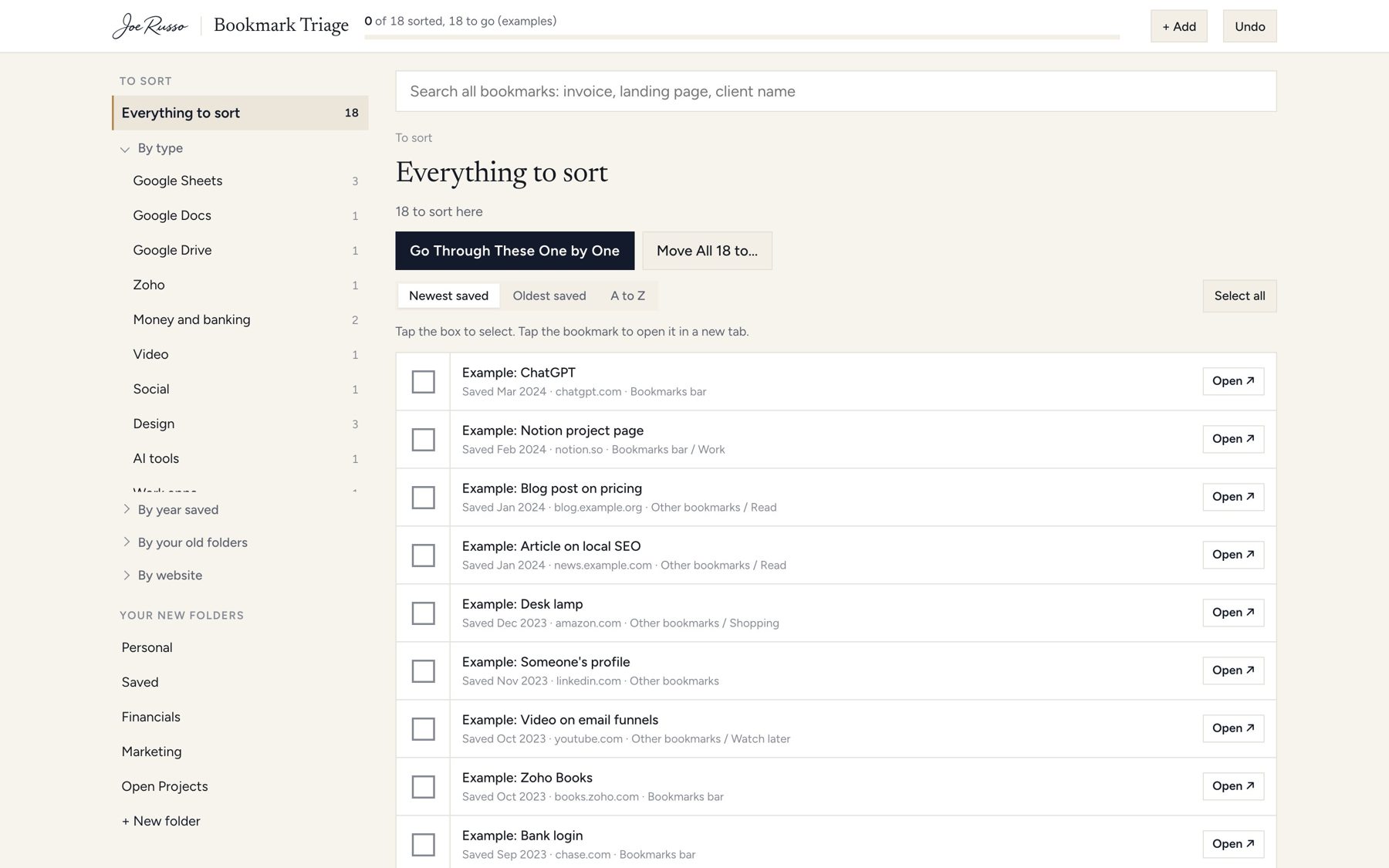
Bookmark Triage showing bookmarks grouped by type, with Google Sheets, Google Docs, video and banking down the side
Sound familiar?

Thousands of bookmarks saved, and most of them you've never looked at again.

Every one was saved for a reason: a tool to try, a doc to come back to, an article worth keeping. A few years later the folders stopped making sense, and you spend more time looking than it would take to search again. No AI knows why you saved that page three years ago. You do. This makes deciding fast.

  • Folders called "New Folder," "Misc" and "Read later" from years ago
  • The same site saved three times in three places
  • Links to tools, docs and accounts you stopped using
  • A bookmarks bar too crowded to use
How it works

Four steps, with every click spelled out.

Go at your own pace. Your progress saves in your browser, so you can close the tab and pick up where you left off. The steps below are for Chrome. Other browsers are in the questions further down.

Step 1

Export your bookmarks

Chrome saves them as one file. It holds the names, links and folders of your bookmarks, nothing else.

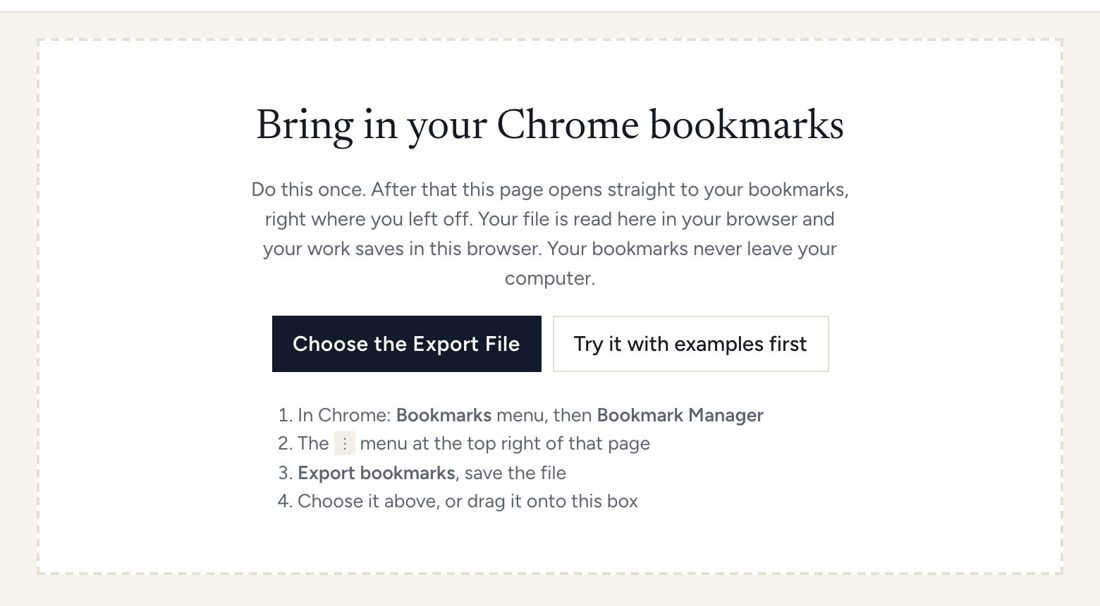
  1. Click ⋮ at the top right of Chrome
  2. Bookmarks and lists, then Bookmark manager
  3. ⋮ at the top right of that page, then Export bookmarks
  4. Save the file anywhere you'll find it
The tool's first screen: Bring in your Chrome bookmarks, with a Choose the Export File button
Step 2

Open the file in the tool

The file is read on your computer, in your browser. Nothing is uploaded.

  1. Click Start sorting
  2. Click Choose the Export File, or drag the file onto the box
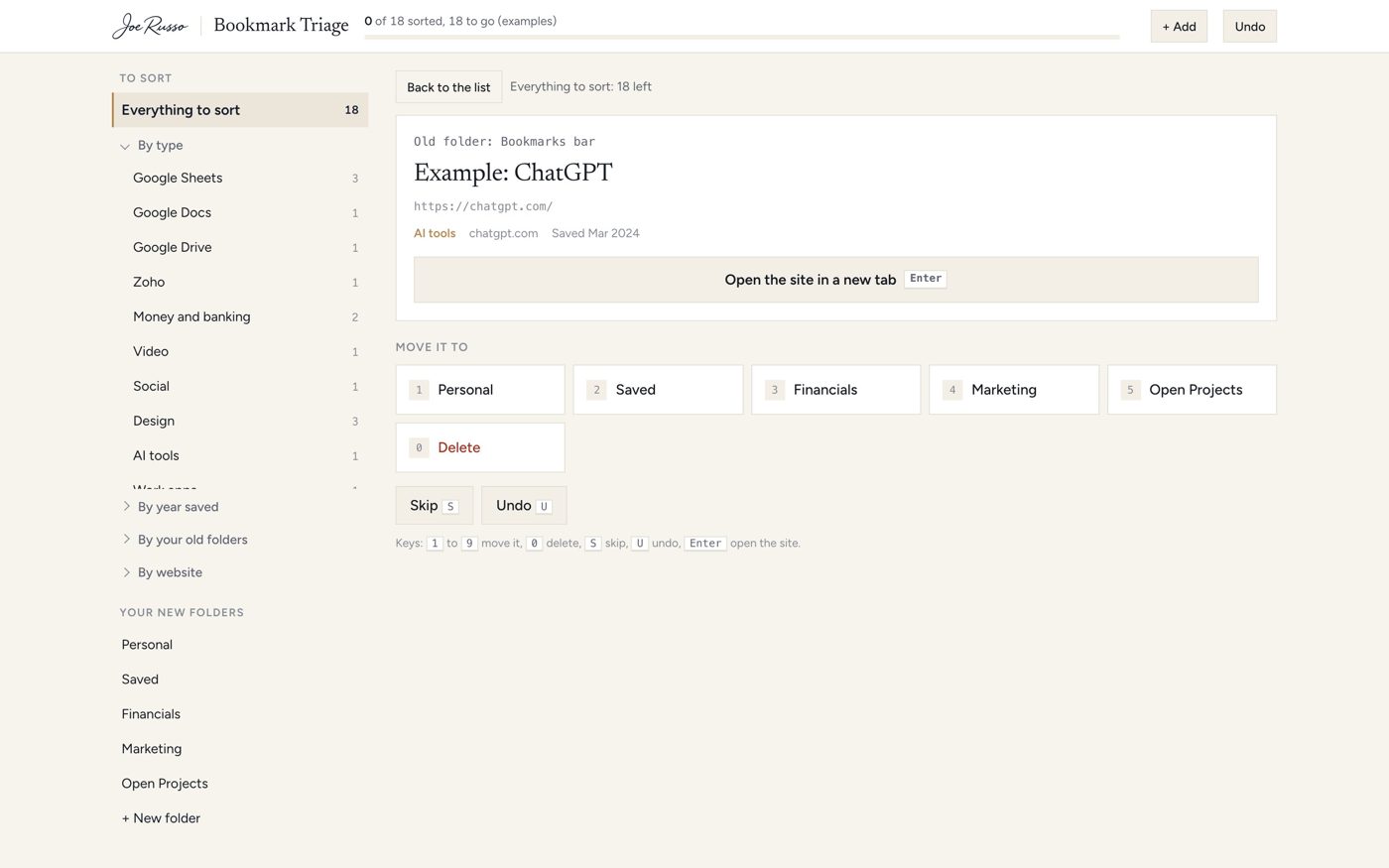
Sorting one bookmark at a time, with a numbered button for each new folder
Step 3

Sort and delete

See your bookmarks grouped by type, by the year you saved them, by your old folders or by website. Move a whole group at once, or go one by one.

  1. Make a few folders that fit how you work
  2. Press a number to file a bookmark, 0 to delete it, S to skip
  3. Open the site if you need a reminder of why you saved it
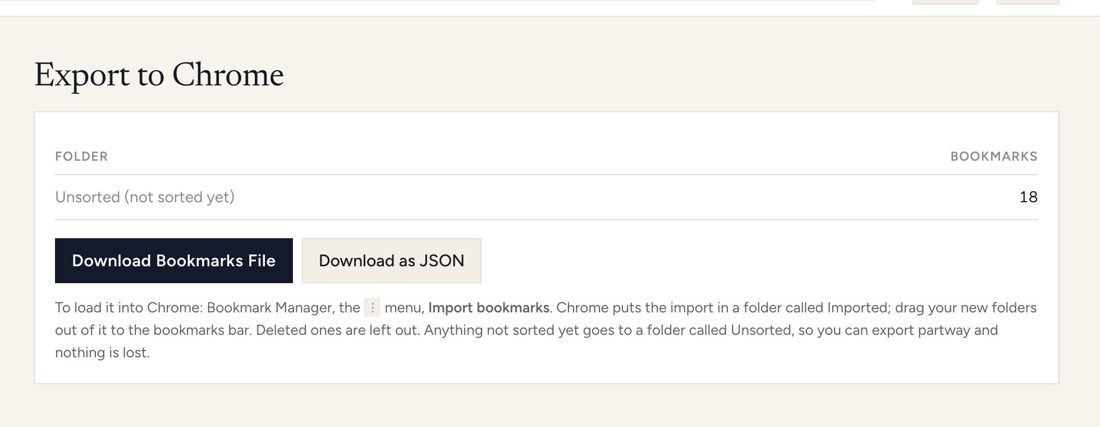
The Export to Chrome screen with a Download Bookmarks File button
Step 4

Put the clean set back

Download one file with your new folders. What you deleted is left out. Anything you didn't get to goes in a folder called Unsorted, so nothing is lost.

  1. Click Export to Chrome, then Download Bookmarks File
  2. In Chrome's Bookmark manager, ⋮, then Import bookmarks
  3. Drag your new folders out of the Imported folder
Private by design

I never see your bookmarks.

The tool runs in your browser. Your file is read on your computer, your sorting saves in that same browser, and nothing is uploaded. Not to me, not to anyone.

It only reads the file you chooseBookmark names, links, folders and the dates you saved them. Never your passwords, history or accounts.
Your browser stays untouchedNothing changes in your browser until you import the clean file yourself.
Your progress stays on this computerCome back in the same browser and it opens where you left off. Clearing your browser's data clears it too, so export when you're done.
What you get

Built to get through thousands, fast.

Smart groupsGoogle Docs, Sheets, video, banking, AI tools and more, picked out for you.
Batch movesSelect a group and file or delete all of it in one step.
Keyboard sortingOne bookmark at a time, one key each. Undo if you slip.
Search everythingFind "invoice" or a client's name across every folder.
Add as you goPaste a link, pick a folder, and it's in your clean file.
Nothing lostDeleted ones wait in Deleted until you export. Unsorted ones come along too.
Questions

The short answers.

Is it really free?

Yes. No trial, no sign-up and no sales call. Use it as much as you want.

Can you see my bookmarks?

No. Your file is read in your browser and your work saves in that browser on your computer. Nothing is sent to me or anyone else.

Does it work with Edge, Firefox or Safari?

Yes. Every major browser exports bookmarks as the same kind of file. To export:

  • Edge: ··· menu, Favorites, then ··· in the Favorites panel, Export favorites
  • Firefox: Bookmarks, Manage bookmarks, Import and Backup, Export Bookmarks to HTML
  • Safari on a Mac: File, Export, Bookmarks
  • Brave: the same steps as Chrome

Import the clean file back the same way. Safari doesn't save the date you added a bookmark, so sorting by year won't help there.

Can I use it to move to a new browser?

Yes. Export from your old browser, sort if you want to, then import the clean file into the new one. The tool shows the import steps for each browser when you export.

Is my original export a backup?

Yes. The file your browser exports is a full copy of your bookmarks as they are that day, and the tool never changes it. Keep it somewhere safe. If you ever want your old bookmarks back, import it again.

Does it change my bookmarks?

No. The tool never touches your browser. You decide when to import the clean file. Chrome puts it in a folder called Imported, and you drag your new folders out of it. Other browsers work much the same way.

What if I stop halfway?

Close the tab. Next time you open the tool in the same browser, it picks up where you left off. You can also export partway: anything not sorted yet goes into Unsorted.

Does it work on a phone?

Sorting works on a phone or tablet, but exporting and importing bookmarks is easiest on a computer.

I built this when my own bookmarks passed 3,000. It worked, so it's yours, free. Joe Russo, Smithfield, RI

Find what you saved. Delete what you don't need.

Free. No sign-up. Nothing to install.

Start sorting free

I build tools like this for businesses. See what else I've built.